
How to connect your social accounts in Post See (step by step)
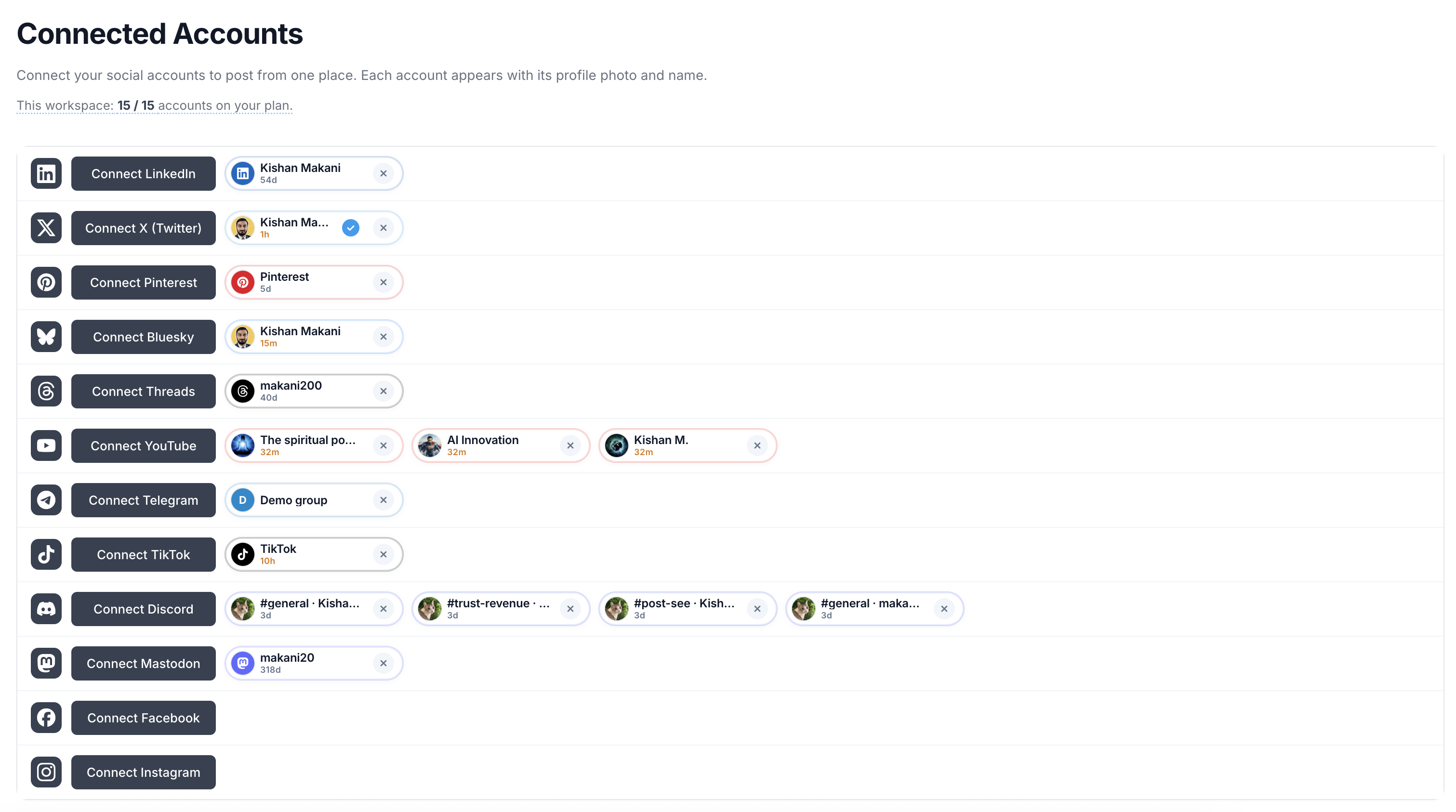
Connecting a profile takes a minute: you sign in with the official login for that network (we never see your password), approve the permissions we need to schedule and publish, and land back in Post See with your account in the list. Follow the steps below using the same screens you will see in your workspace.

Post See Team
Product
Context at a glance
Quick summary
Open Connections, pick a network, sign in with the platform, and you are ready to schedule. This guide walks through the Connected Accounts screen, what each row means, and how to refresh or reconnect when a token shows as expired.
Feature highlight
Use cases
First-time setup before scheduling
Under 2 min eachYou create a workspace and need at least one connected profile before you can pick accounts on a post. Connect LinkedIn or Instagram first, then add others as you grow.
Multiple brands in one workspace
One row per profileEach row is one connected profile. Connect Facebook Page A and Page B as separate rows if you publish to both; the calendar lets you choose which connections each post uses.
When you see Expired or a failed post
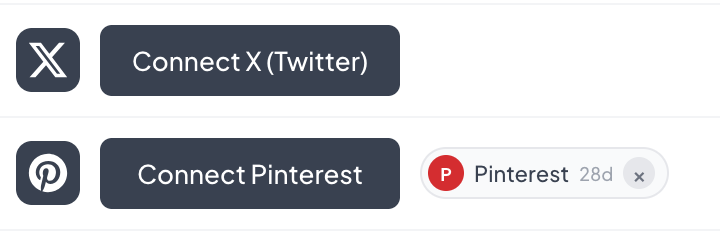
Reconnect fixes itPlatforms revoke tokens after a while or if you change your password. Use Refresh for that network, or disconnect and run Connect again to restore publishing.
How it works
Connection flow in five steps
Everything happens in the browser: we send you to the platform’s OAuth screen, then return to Post See with a secure token stored for scheduling.
Frequently asked questions
Short answers based on this guide—helpful for readers and search.
Where do I connect social accounts in Post See?
Can I connect multiple Facebook Pages or LinkedIn profiles?
What does “Expired” or a failed post mean?
Does it matter if my team is in different countries?
Related resources
Introducing AI-powered caption generation
Write scroll-stopping captions in seconds. Real use case: creators who used to spend 30+ minutes on one post now ship in under 5—with AI that matches their voice. We show you how to get the most out of it and when to tweak vs. ship as-is.
Token auto-refresh: why it matters and how we handle it
Social platforms expire your connection tokens—so "Connect once, post forever" only works if refresh is automatic. Real use case: users who switched from tools that didn't refresh lost access mid-campaign. Here's how we keep your accounts connected.
Buffer alternatives for auto-posting: how to choose a scheduler in 2026
Buffer made queue-based auto-posting mainstream; teams still shop for alternatives when plans, networks, or workflows no longer fit. This article maps the main categories of Buffer alternatives, what “good” auto-posting looks like (OAuth, token refresh, calendar clarity), and how to pick a tool search engines—and your team—can understand at a glance.
Ready to save time on social?
Join 1,500+ creators who plan their content in one place. No credit card required.
- Schedule to all major platforms
- AI captions & smart scheduling
- Start free, upgrade when ready